Ms. Ashley's Tech. World
  • Home
    • About Ms. Ashley
  • Kinder
    • Websites for Learning
    • Photo Gallery of IT Work
    • Early Programming and Robotics
    • Holiday Games
    • All About ANIMALS >
      • Photo Gallery 2014-2015
  • Grades 1-5
    • Hour of Code
    • Websites for Learning
    • Holiday Games
    • 1st Grade
    • 2nd Grade
    • 3rd Grade
    • 4th Grade
    • 5th Grade
    • Explore Computer Programming
    • Elementary Photo Gallery
    • 2014-2015 Elementary Lessons >
      • 2nd Grade >
        • Quarter 2: 2nd Grade
      • 3rd Grade
      • 3rd Grade >
        • Quarter 2
        • Quarter 3
      • 4th Grade Commericials
      • 5th Grade
      • 5th Grade
  • Middle School
    • Typing Practice
    • Grade 6 IT Training
    • Digital Media >
      • All Groups: Intro Unit: Getting to Know You
      • Group A and B >
        • Unit 1: Powerful Presentations
        • Unit 1.5: Typing Practice
        • Unit 2: Reliable Websites
        • Unit 3: Photo Editing
      • Group C and D >
        • Unit 1: Powerful Presentations
        • Unit 2: Designing Layouts in InDesign
        • Unit 3: Berkeley Times Q1
        • Unit 4: Berkeley Times Q2
        • Unit 5: Posters in Illustrator (Typography)
        • Unit 6: Berkeley Times Q3
        • Extra Unit: Logos
      • 2014-2015 Lessons >
        • Unit 1: Creating Infographics
        • Unit 2: Websites
        • Unit 3: Photo Editing
        • Unit 4: Architectual Design (HomeStyler and Google SketchUp)
      • Extended Independent Work (Flora)
    • Coding >
      • 2014-2015 Lessons >
        • 1st Semester >
          • Unit 1: Learning Style/Facebook Page
          • Unit 2: Animated Video Presentation
          • Unit 3: Website and Research
          • Unit 4: Independent Project
          • Flora-Independent Project
        • 2nd Semester >
          • Unit 1: Intro to Digital Story Telling
          • Unit 2: Digital Stories that Inspire Change
    • Coding and Programming Resources
    • Tech. News Fridays
    • Projects >
      • Tata
      • Charles
      • Spencer
      • Noah
      • Ped
  • High School
    • Calendar of Due Dates and Assignments
    • Technology in the News
    • Design News
    • Gamification >
      • Illustrator >
        • Beginner >
          • Quote Poster
          • Principles of Design
          • SnapChat Filter
          • Logo
          • Flat Design
        • Intermediate >
          • Yearbook Graphics
          • Infographics
        • Advanced >
          • Yearbook Templates
          • Poster Campaign
          • Branding Package
        • Pro
      • InDesign >
        • Poster Campaign
        • Design a Business Card
        • Principles of Design
        • Yearbook Layouts
        • Berkeley Times
        • Trifold Brochure
      • Photoshop >
        • Photo Portfolio
    • HS Publication and Design >
      • Unit 1: Learning Illustrator (snapchat filter)
      • Unit 2: Berkeley Times Q1
      • Unit 2: Illustrator-Flat Design
      • Gamification Unit
    • 2D Digital Design (Graphic Design) >
      • Unit 1: Adobe Illustrator/Create a Logo
      • Introduction to Photoshop
    • 3D Design (and Printing) >
      • Introduction to 3D Design
      • Using the 3D Printer (Tips and Tricks)
      • Unit 1: TinkerCad
      • Unit 2: Artistic Design for 3D printing
      • Unit 3: 123d Design
    • 2014-2015 Pub/Design Units >
      • Unit 1: Introduction Presentations
      • Unit 3: Designing Layouts in InDesign
      • Unit 4: Design a Business Card
      • Unit: 5 Quarter 2 Berkeley Times
      • Unit 6: Group Poster Project
      • Unit 7: Choice Projects >
        • Choice 2: Illustrations and Animations (with Illustrator)
        • Choice 3: Architectual Design (HomeStyler)
      • Unit 8: Yearbook!!!!!!
      • Unit 9: Berkeley Times Q3
      • Unit 10: Berkeley Times Q4
    • Design Tips
    • 2013-2014 Pub/Design Units >
      • Unit 1: Infographic Design
      • Unit 2: ESLR Posters/Illustrator Introduction
      • Unit 3: Publications
      • Unit 4: Global Contribution
      • Student Gallery
      • Projects >
        • PowToon Presentations
      • Tech. News Fridays
  • Yearbook Club 2015-16
  • Teacher Resources
    • Online Tools
    • Curriculum Work
    • Standard Based Grading
    • iPad Apps for Learning
    • Programming
  • Global Book Club
  • Emergency Lesson Plans
  • Intermediate Challenge: School Poster

Unit 2: Animated Video Presentation
Why use technology over traditional methods in order to communicate a message? 

Unit Resources

Example: Scientific Process (Elementary)

Potential Topics: 

Science: 
  • Scientific Method including details of each step involved
Math: 
  • Order of Operations
  • Fractions
  • Simple Equations

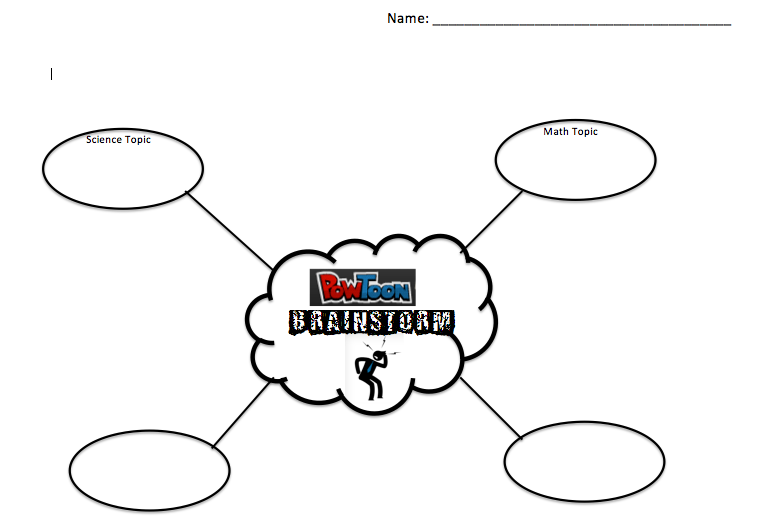
Topic Brainstorm Template

Picture

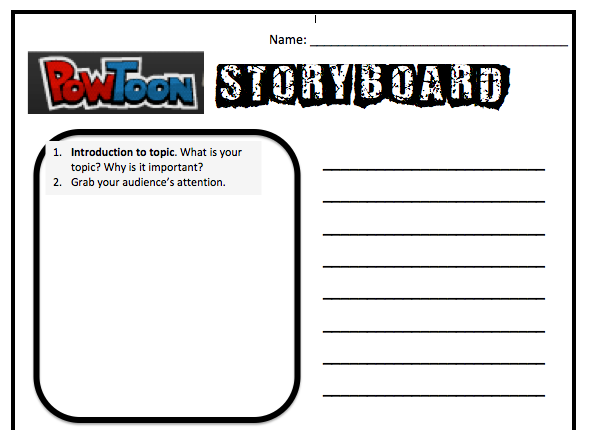
PowToon Storyboard

Picture

Presentation Example: 

Peer Evaluation Day

Picture
Picture
Picture
Picture
Picture

Class Assignments

Day 1: August 29th
Objective: Use informational tutorials in order to create your first practice PowToon presentation. 
1. Introduction to PowToons
  • What is PowToons
  • Look at student examples of presentations
2. PowToon Modules (http://www.powtoon.com)
  • Module 1 Introduction: http://www.powtoon.com/tutorials/#prettyPhotoVideo/12/ and http://www.powtoon.com/tutorials/#prettyPhotoVideo/1/
  • Module 2 First Steps: http://www.powtoon.com/tutorials/#prettyPhotoVideo/13/ and http://www.powtoon.com/tutorials/#prettyPhotoVideo/2/
  • Module 3: About the Timeline http://www.powtoon.com/tutorials/#prettyPhotoVideo/3/ http://www.powtoon.com/tutorials/#prettyPhotoVideo/4/  http://www.powtoon.com/tutorials/#prettyPhotoVideo/5/
  • Module 4: Side Panel http://www.powtoon.com/tutorials/#prettyPhotoVideo/6/  http://www.powtoon.com/tutorials/#prettyPhotoVideo/7/  
  • Module 5: Menu Panel  http://www.powtoon.com/tutorials/#prettyPhotoVideo/8/ http://www.powtoon.com/tutorials/#prettyPhotoVideo/9/
3. PowToon Practice Run: During your modules you will create a mini-movie to present to the class that includes: 
  • Different styles (at least 3)
  • Several objects coming in and out on one slide
  • 3 different object transitions (in and out)
  • 2 different backgrounds
  • 3 states of characters (mood)
  • Text with at least 3 different fonts
  • Background music
  • Share and paste URL in Edmodo
Bonus: 
  • Slide transition where the last slide has been duplicated to create a smooth transition
  • Voice over
3. Brainstorm Topic Idea (use brainstorm sheet)

Day 2: September 2nd 
Objective: Identify skills used in classmates' practice PowToon in order to evaluate their work.
1. Warm Up: Take typing test and post results on Edmodo.
2. Conference with teacher about topic idea (bring brainstorm)
  • While waiting to conference finish Practice Presentation 
  • Early finisher options: Help others, add more to presentation, practice skills from last unit on Publisher, typing practice
3. Present PowToon Practice Presentation
  • Checklist

Day 3: September 4th 
Objective: Plan PowToon presentation using the storyboard template.
Warm Up: Typing Practice (We will take typing test Friday)
1. Finish Presentations 
2. Introduction to working with Storyboards (Class Example)
3. Classtime to work on Storyboards
  • Storyboard template

Day 4:
September 6th

Objective: Plan a good introduction with an attention grabber and explanation of topic.
1. Warm Up: Typing Test (Post on Edmodo)
2. Excel Spreadsheet: Create your graph to chart your typing progress 
  • Title (Change font, size, and color)
  • Words per Minute Chart (Column or Bar Clustered or 3D Cluster)
  • Typing Accuracy Chart (Column or Bar Clustered or 3D Cluster)
  • Choose style, color and font for charts
  • Save and Post on Edmodo
3. Review our 1st Slide: Attention Grabber and Explanation
  • Title/Topic: Does this make your audience want to watch your video?
  • Explanation: Did you explain why your topic is important?  
  • Task: Did you tell the audience what you will do in the video?

Day 5: September 10th 
Objective: Finish and plan storyboard in order to guide yo. 
1. Warm Up: Typing Practice (10 minutes)
2. Storyboards: Conference with your teacher before you begin. 
3. PowToons: Review and refine your presentation creation skills
  • PowToon Tips #1: Design and Animation Tutorial 
  • PowToon Tips#2: Marker Style background Tutorial
  • PowToon Tips #3: New Style in Presentation Mode
4. Work Time: Work on PowToon Presentations using your storyboard as a guide. 

Day 6: September 12th
Objective: Critique présentations, and identify the 4 principles of design.

Warm Up: Typing Practice (10 minutes)
1. What makes a good presentation: (Tips)
  • http://www.youtube.com/watch?v=6MloL1gIccs
  • http://www.youtube.com/watch?v=GDvChPtanfE
  • http://www.youtube.com/watch?v=s0H9B0YhOok
  • http://www.youtube.com/watch?v=CRAjAPPYwyA
2. Watch and discuss example video 
  • What did the presenter do well? 
  • What could be modified to improve it?
3. Work Time: Work on PowToon Presentation using the storyboard as your guide
  • Tips: 
  • Keep your slides long enough to be able to be read
  • Don't use TOO many icons or typing styles
  • Only include relevant information
4. Create your own account
http://www.powtoon.com/edu/join-group/
and enter the following code: 8UM4

Day 7: September 16th
Objective: Work on PowToons assignment
Warm Up: Typing Practice (10 minute) 
  • You may want to document another typing test! :)
1. Work Time: Work on your powtoon video. Remember to include the principles of design: 
  • C-Contrast
  • R-Repetition
  • A-Alignment
  • P-Proximity
Sign up for PowToon: Tell your students to visit this web page:
www.powtoon.com/edu/join-group/8UM4/
http://www.powtoon.com/edu/join-group/
and enter the following code: 8UM4

Day 8: September 18th
Objective: Finish PowToon Assignment
Warm Up: Typing Practice (test due this week)
  • Turn in typing test on Edmodo
  • Add to your Typing Progress Graph
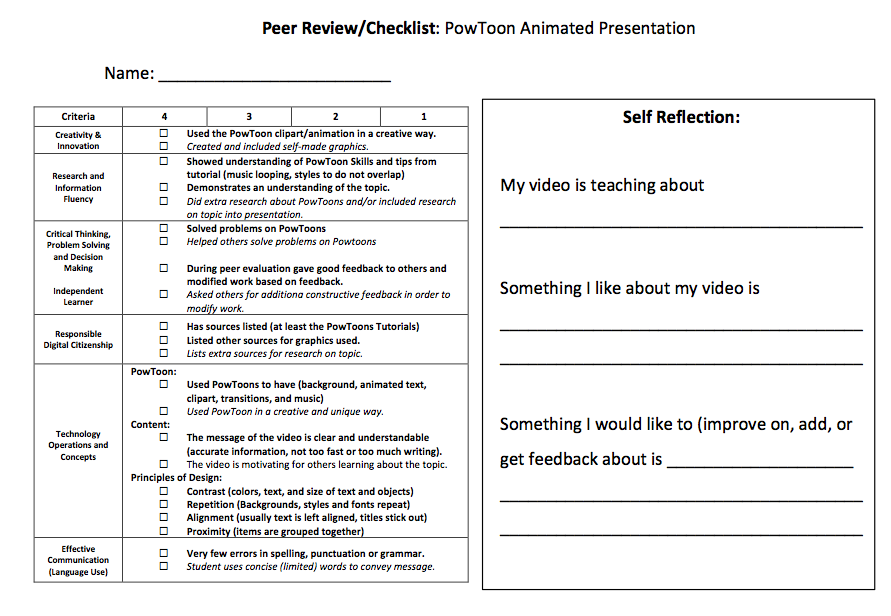
1. Overview of Rubric
  • Rubric
2. Work on PowToon Assignment.
  • Monday will be peer review day.

Day 9: September 24th
Objective: Peer and self evaluation of 1st draft of PowToon animated video. 
1. Review Rubric (modified checklist)
2. WorkTime: Work on PowToon video for 1st half of class
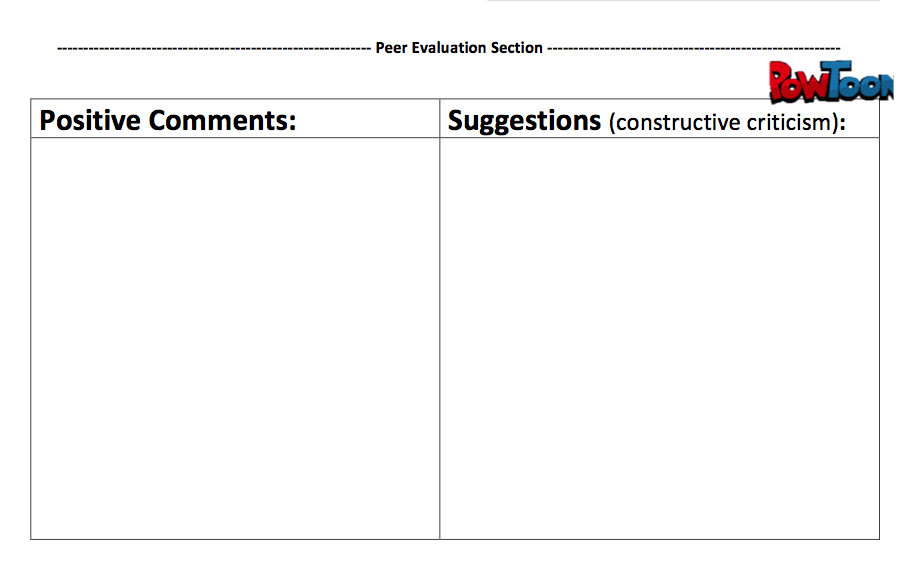
3. Peer Evaluation: Watch peer video and give constructive feedback
  • Suggestion: Give them an idea to modify their work
  • Comment: Tell them something they did well
4. Self Evaluation: Review your own PowToons and make modifications. 

Day 10: September 26th

Objective: Peer and self evaluate 1st draft of PowToon video. Modify work based on feedback given. 
1. Finish evaluation classmates PowToon
  • You must evaluate each person (use checklist on board)
  • Be specific in your feedback and suggestion (i.e. include slide number and how you would modify it)
2. Complete the rubric portion of self reflection
  • Bolded parts are required
  • Italicized parts are for a 4
  • If you finish early you should be trying for the 4! :) 
3. Modify your PowToon animated video based on the feedback given. 
  • To be finished with PowToon you must have feedback from all peers in class AND final approval from a teacher 
  • No grammar, spelling, or punctuation mistakes
  • Content must be readable and accurate
*If you finish early:
  • At least 15 minutes of typing practice
  • Take a typing test and add results to your chart
Day 11: September 30th
Objective: Self Reflect on Project
Warm Up: Typing Practice (10 Minutes Free Choice Typing Practice)
1. Watch Video for final adjustments
  • Fill out Student Self Assessment Rubric
2. Present video to class
  • Students give oral feedback
3. Discuss: How will we make these videos easily accessible to the outside world in order to get our message out there? 
  • QR Code Scavenger Hunt
Day 12: October 2nd 
Objective: Reflect on learning
1. Discussion: Ways to communicate a message. 
  • www.popplet.com
2. Reflect: (Type in Word. Publish to Edmodo.)
  • 1st Paragraph: Ways to communicate a message
  • Include examples for each
  • 2nd Paragraph: Best method to communicate a message. Why use technology over traditional methods of communicating a message?
  • 3rd Paragraph: Conclusion (Summarize your points)

Day 13: October 4th 

Objective: Publish work to audience. 
 1. Finish writing your summary Essay (submit to Edmodo)
2. Publish PowToon to YouTube
3. Choose 6 scenes to demonstrate your storyboard. 
  • Take screenshot and edit them in Publisher
  • Remember to add a border around it and resize for your given paper. 

Day 14: October 8th
Objective: Publish work to an audience
1. Export Videos to YouTube
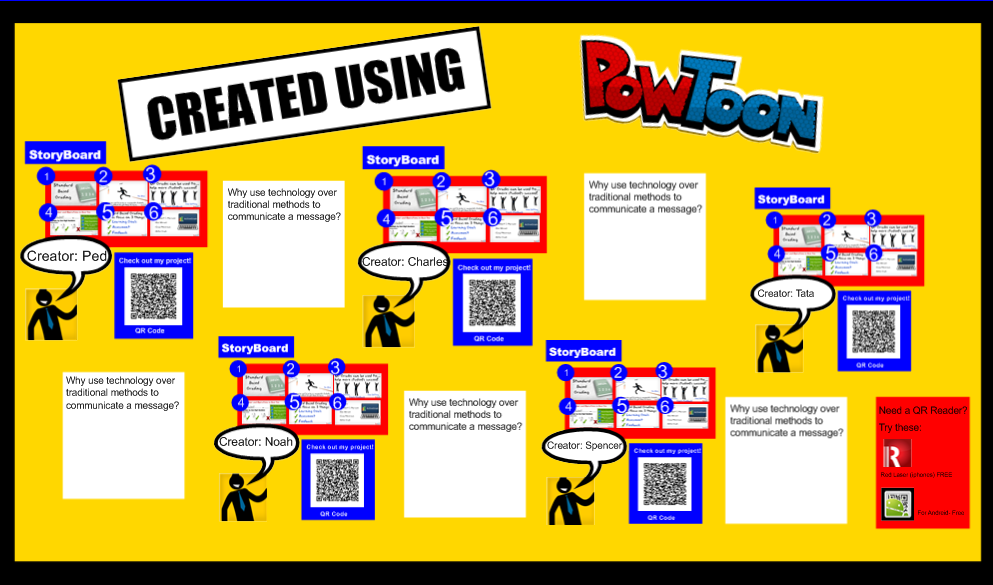
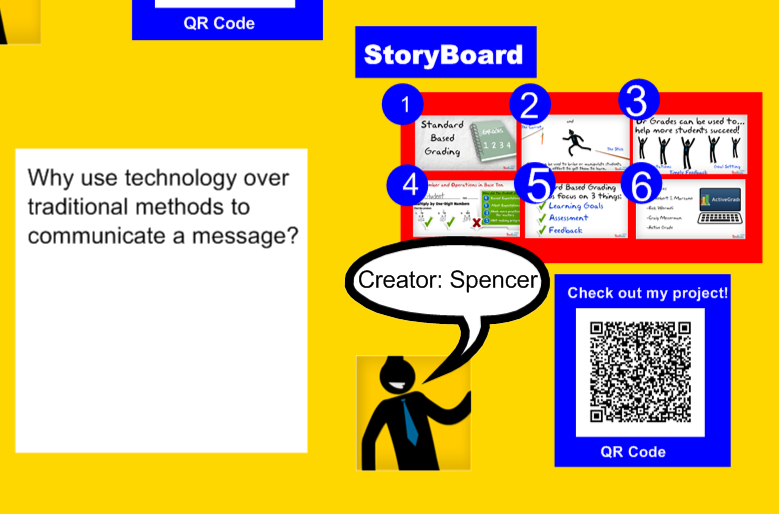
2. Create QR Codes for final work. 
3. Display work on Bulletin Board so it is attractive to students in the hallway, and interests them in watching videos!
  • Be sure to test your QR Code


Powered by Create your own unique website with customizable templates.